Followers

Tuesday, September 3, 2013

New Login Information for www.ikclife.com

Did you know you can now log into ikclife using your existing kclic username and password? 
Simply navigate to www.ikclife.com and type in the username and password you use to access www.kclic.net and you will now be able to log into ikclife without having to create a separate username and password.
If you have an existing username and password for www.ikclife.com that differs from your www.kclic.net username and password, you will still be able to use your existing ikclife username and password to log in.
If you are having trouble logging into ikclife with your kclic username and password, you may contact Field Technology Support at 1-800-572-2467 x8511 or email fieldtechsupport@kclife.com.  For all other login inquiries, please contact us at 1-800-572-2467 x8162 or email us at illustrationhelp@kclife.com.


Illustration Development Team
1-800-572-2467 x8162
illustrationhelp@kclife.com

Wednesday, August 7, 2013

The Inforce Requester

Did you know that you can request inforce policy illustrations at www.ikclife.com?

To request an inforce policy illustration, navigate to www.ikclife.com and click on Inforce Requester.


Fill in the necessary information for your request.

Select "Current" from the dropdown if you would just like a current illustration. If you would like something other than a current illustration, select "Other" and type in a description for your request. Be sure to fill in all necessary information so we can contact you if needed.

Once you have filled in all of the information click "Submit Request."  If the request is for a current illustration and the policy is assigned to you as the Agent, when possible, the illustration will be sent to the email address we have on file within seconds.  If the request involves manual processing, it will be handled and emailed to you within a few business days.


Illustration Development Team
illustrationhelp@kclife.com

Tuesday, July 16, 2013

Wizards on www.iKCLife.com

There are many Wizards available on iKCLife that are all very useful tools for you! 
 
To access the different Wizards navigate to www.ikclife.com and log in.  If you do not have a login, you can create one by clicking on Create User.
 

Once you have logged in, click on the tab named Wizards.
 
 
This will bring up the list of available Wizards.
 
 
If you have any questions on how any of the Wizards work please feel free to contact us and we will be more than happy to help you!
 
 
Have a Great Day,
 
The Illustration Devoplement Team
1-800-572-2467 x8162


Thursday, June 27, 2013

New Product Guide

A new Product Guide is now available on both the Desktop and Online Illustration Systems.


To access the new product guide online, log in at www.ikclife.com.  If you do not have a login, you can create one by clicking on Create User.


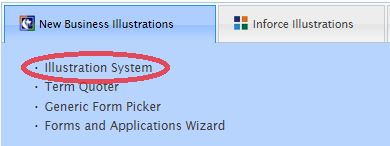
  Once you have logged in, click on Illustration System under the New Business Illustrations tab.


The new Product Guide can then be accessed by clicking on the book at the top of the screen.


To access the new Product Guide on the desktop version of the Illustration System, open the Illustration System and click on the book at the top of the screen.


To use the new Product Guide, click on the bookmark at the top left of the screen.  This will break down the products by type.  Click on the product in the list that you would like to view and you will automatically be taken to that page of the Product Guide.


Based on your version of Adobe Reader, you may not initially see the bookmark when you open the Product Guide.  If you do not see the bookmark, place your cursor at the bottom of the first page of the guide and a pop up toolbar will appear.  Click on the Adobe logo and you will then have the option to click on the bookmark at the top left of the page.


Illustration Development Team
1-800-572-2467 x8162

Monday, June 10, 2013

Calculating Pending Policy Premium Changes

After an application is submitted to Underwriting, if a change is made that would affect the premium for the client, the new premium will need to be calculated.
 
For example, if an application is submitted for a Level 20 for a Male, age 48, at Standard Non-Tobacco and after review is then offered at a Table B, the new premium can be calculated using the Desktop or Online Illustration System.
 
The Online Illustration System can be accessed by navigating to www.ikclife.com and logging in.  If you do not have a login, you can create one by clicking on 'Create User.'


Once you have logged in, click on 'Illustration System' within the 'New Business Illustrations' tab.


This will bring up the Online Illustration System.  To calculate the new premium, enter in the information for the client:

 
Since the policy is being offered at Table B, we will need to add in the table rating.  We will add this as a '2' in the box highlighted below.  A table rating of '1' corresponds to a Table A, a table rating of '2' corresponds to a Table B, and so on.  Entering in the table rating for the Level 20 will automatically display the new premium in the premium box on the left. 


While term quotes automatically display the premium upon entering in the client information, Universal Life quotes give you the ability to calculate the premium since the premium is flexible with these type of products.
 
Let's take the same information used before, but assume the client submitted a Supernova Application and, after review, the policy was being offered at Table B. 
 
To calculate the new premium, enter in the information for the client, including the Table B rating.  Since premium is flexible with the Supernova, we will need to calculate the new target premium.  To do this, click on the 'C' that is highlighted below.
 
 
When the box comes up, click on 'From Specified Amount' and click the 'C' next to 'Target.'  This will display the new Target Premium based on a Table B rating.  Since premium is flexible, the premium can then be adjusted accordingly so that the policy performs at the level desired.


Illustration Development Team
1-800-572-2467 x8162


Wednesday, May 15, 2013

Adding Riders on the New Business Illustration System

Recently we've received some calls asking how to add riders to an illustration in the New Business Illustration System so I wanted to take some time today to show you how that can be done.

To begin, log in at www.ikclife.com.

Once you have logged in, click on Illustration System.  Proceed to enter in the information for the illustration.

All available riders for the chosen product will be listed under the Riders section.


Simply check mark all riders that you would like to add to the illustration.


If you select a rider that requires configuration, it will show up in the Rider Information section.


Once you select the rider from the drop down menu you can update any of the rider information.  After you have made the changes, click on the X in the upper right corner to close the box.


If you have any further questions on how to add a rider to an illustration or any other questions, feel free to give us a call and we can help you out!

The Illustration Development Team
1-800-572-2467 x8162

Thursday, May 2, 2013

Updating Agent Information on the Desktop Illustration System

Adding or updating Agent Information on the Desktop Illustration System can be completed in just a few simple steps.  Information you have made available in the Agent Management section will show up on the front page of any quotes you complete so that potential clients have all of your information should they need to contact you.
 
To add or update this information on the Desktop Illustration System, navigate to Tools at the top of the screen and select Agent Management.


To add your information, click on the Add button.  Fill in all applicable information and click OK


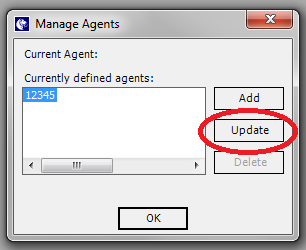
To update your information, select your Agent number and click on the Update button.  Change any applicable information and click OK.


Any information that was added or updated will then show up when you run quotes for your clients on the first page of the illustration.


If more than one Agent uses the Desktop Illustration System, you can switch between Agents to ensure that the proper Agent information shows up on quotes that Agent ran.  To change the current Agent on the Desktop Illustration System, click on Tools at the top of the screen and click on Change Current Agent.  Choose the desired Agent number in the dropdown and click OK.  That Agent's entered information will now appear on the quote when it is run.


The Illustration Development Team
illustrationhelp@kclife.com
1-800-572-2467 x8162