Followers

Tuesday, February 19, 2013

The EquiFlex is Here!

Beginning today the EquiFlex is available for quoting and issue!  The EquiFlex is now available on both the Desktop Illustration System and the Online Illustration System.

The EquiFlex Indexed Universal Life is a flexible premium universal life product with an index option.  Indexed universal life functions similarly to universal life, however the client can choose to invest their policy's values into a fixed account or an indexed account.  Money allocated to the indexed account is divided into segments, where each segment earns indexed credits based on the performance of an outside index, subject to declared parameters (such as a cap or participation rate).  Although the policy's values can vary according to the performance of an outside index, the policy's values are not invested in outside investments.

Here is some basic information about the EquiFlex:
                
               Issue Ages                
20-80 (PENT, PNT, SSNT, NT)
20-70 (PT, T)
(Age Nearest Birthday)

Risk Classifications
Preferred Elite Nontobacco (PENT)
Preferred Nontobacco (PNT)
Standard Select Nontobacco (SSNT)
Standard Nontobacco (NT)
Preferred Tobacco (PT)
Tobacco (T)

Minimum Issue Limits
$100,000 for ages 20-49
$50,000 for ages 50+

Coverage Options
Option A
Option B
Option C
 
Guranteed Interest Rate for Fixed Account
1.0%
 
Minimum Guaranteed Rate for Indexed Accounts
0%
 
Riders
Accidental Death Benefit (ADB)
Assured Insurability (AI)
Childrens' Term Insurance (CTI)
Disability Continuance of Insurance (DCOI)
Disability Payment of Premium (DPP)
Enhanced Lifving Benefits Rider (ELB)
Income Assured Option (IAO)
Living Benefits Rider (LBR)
Other Insured Rider (OI)
Overloan Protection Rider (OPR)
Terminal Illness Rider (TIR)
 
DEFRA Testing
Guideline
Cash Value Accumulation Test

For additional questions about the EquiFlex or for help in setting up a quote on this new product, please feel free to contact us. 

Illustration Development Team
1-800-572-2467 x8162
illustrationhelp@kclife.com

Monday, January 28, 2013

Running Inforce Illustrations


Most inforce policy illustrations can be done through our website, www.ikclife.com. Here is some information on how to run inforce illustrations for your clients.


If you are the assigned agent, the policy has been in force for at least one year, the policy is above the minimum specified amount, and the product type is in our list of illustratable inforce products below, then the ability to run an inforce illustration is at your fingertips!


To take advantage of this tool, navigate to www.ikclife.com and log in.
 
PLEASE NOTE: If you do not have a username and password, you can create one by clicking on ‘Create User.’


Once you have logged in, click on the Inforce Illustrations tab and click on "Run Inforce Illustrations."


Type in the policy number you are trying to access and click, “OK.”


When the policy summary comes up, if you would like to make hypothetical changes and run inforce illustrations, click on "View Illustration" at the bottom of the page.


You will then be directed to the input screen. Here, you can make hypothetical changes to the policy by clicking on the change buttons. Once changes have been made, click on the magnifying glass to run the illustration. If you would like a current illustration to see how the policy is performing, click on the magnifying glass to run it and you will be presented with a current policy illustration.


We have provided you with many options when running inforce illustrations to help you meet the need of your existing clients, so please feel free to call us with your questions. We would be happy to spend some one-on-one time helping you walk through any inforce requests you receive.


Illustration Development Team
illustrationhelp@kclife.com
1-800-572-2467 x8162


Friday, January 4, 2013

Term Quoter on www.iKCLife.com

The Illustration Development Team is excited to announce our new KCL Term Quoter on www.iKCLife.com.  The KCL Term Quoter allows you to quickly run level term quotes, and only generate illustrations when you need them.  To watch a video below and learn more about how the Term Quoter works, click on the link below:


You will be prompted to log in.  If you do not have a log in, you can create one by clicking on 'Create User.'


Once you have logged in, click on 'Training' at the top and click on the 'Videos' tab.


To view the How-To video on the Term Quoter, click on the iKCLife videos and choose the Term Quoter.


Click here to check out the Term Quoter, and start generating quotes for your clients right away!

We've also put together a great Help Page which explains the Term Quoter in more depth, including browser specific questions you may have.  Click here to view the Help Page now.

Thursday, December 13, 2012

New Training Videos Page

We now have a new Training Videos page on www.ikclife.com!!  You can find videos about iKCLife, the online illustration system, the online inforce system and the desktop illustration system.  If there are any training videos that you'd like to see, please let us know, and we'll do our best to post them.

To watch the training videos, log in to www.ikclife.com.  If you don't have a log in you can create one by clicking on the 'Create User' link.
 
 
Once you have logged in, click on 'Training' and then the 'Videos' tab.
 
 
This will take you to our Training Videos page.

 
To begin, choose one of the topics available or search a key word or phrase.
 
 
Next, choose the training video you would like to watch.
 
 
The video will now be loaded into the player.  Click on the play button to start the video.


Make sure to click on the expand button (as shown below) within the video player so that you can watch the video using your full screen.
 
 
We hope you find all of the videos helpful!  Please feel free to contact us if you have any questions.
 
The Illustration Development Team
1-800-572-2467 x8162


Friday, November 16, 2012

Setting Up Conversion Illustrations


The Double Take Term Conversion Program is going on from Nov 1 through Dec 14, 2012!  With this special offer, Kansas City Life Insurance company will give your clients a double conversion credit if applicable when they convert their existing term policy to an eligible permanent life insurance policy.

Since it is Double Take Term Conversion time, I thought I would take some time today to highlight how a conversion illustration can be completed within the Illustration Software.

For example, let's say you have an existing client named "Bob".  Bob recently contacted you because he is interested in taking his existing Level 10 Term policy and converting it to a permanent policy.  After talking with Bob about his current life insurance needs, lets assume Bob has decided he's interested in seeing an illustration for a Life Protector Universal Life with the LPR premium.

Let's assume this is the information for Bob's Existing Level 10 Term:
Gender: Male
Birthday: 1/1/1980
Risk Class: Standard Non-Tobacco
Specified Amount: $200,000
Double Conversion Credit for $200,000: $100.00
We will use this information to set up the conversion illustration.


Here are a few simple steps you can take to prepare the conversion illustration:

1. The first thing you will want to do is find out what the conversion credit is for the existing policy.  You can access this information by contacting New Business at 1-800-572-2467 x8025 and asking for the policy's conversion credit.  Once you have determined that the policy is in fact convertible and you have obtained the conversion credit amount, the illustration can be created!

2. To create the illustration, open up the Illustration Software and select the product desired.  In this case, we will select the Life Protector for Bob.


3. Next we will input Bob's information, just like we would if we were completing a New Business Illustration.  A few things to remember:
    • We want to use Bob's birthday to determine the appropriate age.  We don't want to use Bob's age when he originally purchased his Level 10.  Instead we want to use Bob's attained age. 
    • We want to use the same risk class that was assigned to Bob for his Level 10. 
    • If Bob has chosen to convert his entire specified amount, we want to find the conversion credit for that full amount and use that same amount in the illustration.


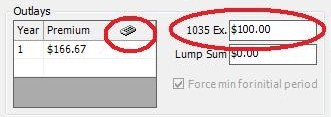
4.  Once you have input the client's information, you will then want to enter the conversion credit amount in the 1035 exchange box.  Once this is completed, to figure the LPR premium for this case including the conversion credit, click on the Premium Calculator and select "Advanced Premium Guarantee Calculator" in the dropdown.  As long as "Use Dump In" is checkmarked, this will take your conversion credit into account when determining the LPR premium.


It's as easy as that!  If you have any questions or would like us to assist you in setting up a conversion illustration, just give us a call!

 
Illustration Development Team
1-800-572-2467 x8162

Friday, October 19, 2012

Inforce Illustrating - Changing the Specified Amount on an Inforce Policy and Solving for a New Premium

Good Afternoon!

We often receive calls from Agents asking for assistance with changing the specified amount on an existing policy and solving for a new premium. 

We wanted to take this opportunity to share a new video with you that shows you in detail how this can be accomplished using the Inforce Illustration System on our website, www.ikclife.com.  The Inforce Illustration System allows you to make hypothetical changes to inforce policies assigned to your Agent number and view projections to see how the policy might perform if these changes were made.

Click to view the video below for a detailed walkthrough on to how this can be done. 

Make sure to click on the expand button (as shown below) within the video player below so that you can watch the video using your full screen.


Look for more new training videos coming soon to the iKCLife website!


For questions related to the Inforce Illustration System, please feel free to contact us.


The Illustration Development Team
1-800-572-2467 x8162

Friday, September 21, 2012

Forms and Applications Wizard

 
Unsure of what application and forms are required for a particular product?  The Forms and Applications Wizard is a great tool that can be used to provide you with everything you need.


To use the Forms and Applications Wizard, log in to www.ikclife.com.
Don't have a login?  No problem!  You can create one by clicking on the 'Create User' link.


Once you have logged in, click on the 'New Business Illustrations' tab and select the 'Forms and Applications' wizard.


In order to find all the forms and applications you will need for a pending policy, answer the following questions to the best of your knowledge and the Forms and Applications Generator will provide the necessary forms and applications that you will need.


Once you have answered the questions, click on 'Continue.'
Answer any additonal questions that appear.  When finished, click 'Submit.'


A listing of all the forms and applications needed for the policy will then be displayed.  You can click on the link next to any of the forms or applications to view, save, or print a copy or you can click on the last link to receive all the forms and application in one packet.


Sincerely,
The Illustration Development Team
1-800-572-2467 x8162
illustrationhelp@kclife.com