Followers

Friday, July 22, 2011

Solving for the Premium to Reach a Specific Year/Age for Inforce Policies

One of the most common types of inforce illustration requests we receive on a day-to-day basis is the request to solve for a premium that will carry an inforce policy to a specific year/age.  This is a very simple request that can actually be completed with the click of a single button, so we wanted to take a moment to show you where you can go to find this premium.

First, click on the Inforce Illustration button within your desktop software, or you can navigate to www.ikclife.com.  Both options will take you to a login screen.


PLEASE NOTE: If you do not have a username and password, click on "Create User" and you will be able to set one up. 



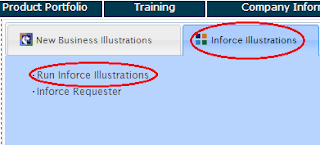
Once you have logged in, click on "Run Inforce Illustrations."


Make note of the parameters for looking up inforce policies:


Type in the policy number and click "Ok."


Next, the Policy Summary will be displayed.  To run an illustration click "View Illustration."


To solve for the premium to reach a specific year/age, click on the PTY (Premium-to-Year) button. 


When the Premium Calculation window comes up, type in the Pay Through Year, Target Cash Value, and Achieved at End of Year figures you want to see, and select either current or guaranteed mortality from the dropdown.  Once the information has been entered/selected, click on "Calc" so that the modal premium can be calculated.

For example, let's assume I have a policy that was issued for a 30 year old and I want to solve for the premium to reach age 90 based on current assumptions.  I would input a Pay Through Year of 60, since 60 years from the client's issue age they will be 90.  I would input a Target Cash Value of $1,000.00, and I would want this to be Achieved at End of Year 60 as well since I only want the policy to run to age 90.  Since I want this policy to run to age 90 based on current assumptions, I would then select Current Mortality from the dropdown. 


If a premium can be calculated based on your inputs, the premium will then be displayed based on the billing mode that is selected similarly to the example below:


If a premium cannot be calculated based on your inputs, the following message will be displayed:


Once you are satisfied with the premium, click the magnifying glass to run the illustration.


As always, if you have any questions or would like help working on an inforce policy, please feel free to give us a call, we are here to help!

Illustration Development Team
1-800-572-2467 x8162


Thursday, July 7, 2011

Life Expectancy Calculator

Did you know that a Life Expectancy Calculator is included in the Illustration Software?

To utilize this tool, click on Wizards and select Life Expectancy.


Fill out the necessary information and click Click for Output.


This will generate a one-page summary detailing the Life Expectancy that can be printed and shown to the client.


As always, please feel free to contact us with any questions you may have.

Jill Parsons
Illustration Development Team
illustrationhelp@kclife.com

Friday, July 1, 2011

No Connection Could Be Established?!?!

One of the common types of calls we receive from Agents in the field are questions related to Illustration Software updates.  The Illustration Software can be updated at any point by clicking on "Tools" at the top and selecting "Check for Updates."  You will be prompted to update your software the first time it is opened in a new month.


If updates are available, you will receive a message stating so and the updates will be downloaded and your Illustration Software will be updated, but what if you receive a message that says "No Connection Could Be Established?"  This means that a connection the server could not be made to obtain updates.  Listed below are some trouble-shooting tips on how this issue may be resolved:

1.  Please ensure that you are connected to the internet.

2. This error message may be the result of Windows Firewall settings.  You can contact your IT professionals to check and/or change your Windows Firewall settings.

3. If you have AVG Anti-Virus, then you will need to disable it prior to checking for updates.

4. Other anti-virus programs may conflict with downloading illustration updates.  Try disabling your anti-virus prior to checking for updates.

5. Try checking for updates a few times in a row to try to get a connection.  Sometimes intermittant connections may cause you to receive this error the first time, but will connect right away when you attempt to check for updates a second time.

6. A weak internet connection could cause this error. 

7.  If the problem persists, please contact your IT professionals, or go to the following link to set up an account for our Online Illustration System:
http://www.kclillustration.com/agentDiscovery.aspx

Jill Parsons
Illustration Development Team
illustrationhelp@kclife.com

Monday, June 20, 2011

Training Videos

Do you have a new staff memeber that is still learning to use the Illustration Software?  Or maybe you have a question on a specific product? 

When running illustrations, based on the product you select, a list of training videos will be loaded for viewing. Simply click on the T.V. icon to view the list of helpful videos that may assist you in running your illustration.


As always, feel free to contact us with any questions you may have.

Jill Parsons
Illustration Development Team
illustrationhelp@kclife.com

Monday, June 13, 2011

ETI on Cashbacks

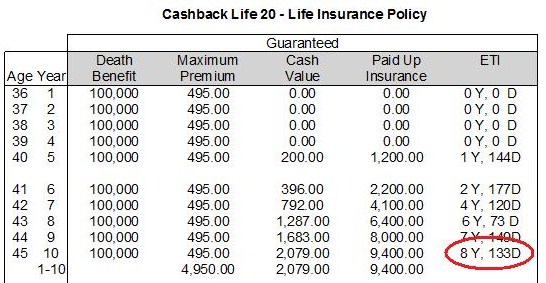
One call we receive frequently is in regards to the Cashback Life 20/30 - Age 95 and the Cashback Life 20/30 - SE (for those of you in OH, PA, UT, and WA), and that question is: What does the ETI stand for on the output?  Simply put, the ETI you are seeing on the output when you run your illustration stands for Extended Term Insurance.  This is the period of term insurance that the net cash value will purchase for the full face amount of the policy, less any policy loans and loan interest.  For example, let's say a client purchases a Cashback Life 20 - age 95.  In year 10, let's assume they stop paying premium.  The ETI indicates how long the policy will last in years and days.  So, in this example, the policy will run 8 years and 133 days - less any policy loans and loan interest.


Feel free to contact us for help setting up Cashback illustrations!

Jill Parsons
Illustration Development Team
illustrationhelp@kclife.com

Thursday, June 2, 2011

Table Ratings

We frequently receive calls regarding table ratings.  Sometimes it's for help setting up a New Business Illustration and there are questions about how to add in the table rating.  More often than not however, it is because an application has been submitted and Underwriting has informed you that the policy is being offered with a table rating - which then leads to the next question - "What is the new premium being offered on this policy?"  With a few, quick steps, this premium can be figured using the Illustration System.

1. Bring up the Illustration System and enter in the client information just as you did the first time (or open up your saved quote).  Make sure you use the same Specified Amount and include any riders you may have quoted and submitted the first time.  Ultimately, you want to make sure to use the same information so that the quote matches the original premium you came up with.

2. Let's assume, for example, that Underwriting has informed you that the policy is being offered at a Table "B."  Note: that the letter and number of the alphebet coincide.  So, if you are being offered a Table "B," this is essentially the same thing as a Table 2.  (Table 1 is A, Table 2 is B, Table 3 is C, etc.)  To add in your table rating, simply type the number of the table rating in the box at the top right of the input screen and hit the tab key.  You will see that this then also places the letter to the right of the number you entered.  The table rating you just entered is now being considered part of the quote.  Any modifications you make from this point forward will take the table rating into account as well.


It's a simple as that!  Feel free to call me with any questions you may have pertaining to quoting with table ratings.  I am happy to help.

Jill Parsons
Illustration Development Team
illustrationhelp@kclife.com

Thursday, May 26, 2011

Solving for the Premium to Reach Maturity (PTM) on an Inforce Case

One type of illustration we typically get requests for, is solving for the premium to reach maturity on an inforce policy.  This is actually a very simple illustration to generate and can be accomplished by using the Inforce Illustration System.

To begin, click on the Inforce Illustration button within your desktop software, or you can navigate to www.ikclife.com.  Both options will take you to a login screen.


PLEASE NOTE: If you do not have a username and password, click on "Create User" and you will be able to set one up. 


Once you have logged in, click on "Run Inforce Illustrations."


Make note of the parameters for looking up inforce policies:


Type in the policy number and click "Ok."


Next, the Policy Summary will be displayed.  To run an illustration click "View Illustration."


To solve for the premium to reach maturity, simply click on the PTM button. 


If a premium to reach maturity can be calculated, the premium will then be displayed based on the billing mode that is selected similarly to the example below:


If a premium to reach maturity cannot be calculated (Due to DEFRA, etc.), the following message will be displayed:


Once you are satisfied with the premium, click the magnifying glass to run the illustration.


As always, if you have any questions or would like help working on an inforce policy, please feel free to give us a call, we are here to help!

Jill Parsons
Illustration Development Team
1-800-572-2467 x8162