Followers

Friday, May 30, 2014

CVAT or Guideline?

When should I use CVAT vs. Guideline?  This is a question we frequently get when helping an agent set up a new business illustration.  Below explains what CVAT and Guideline mean and some scenarios of when to use each one.
 
Cash Value Accumulation Test (CVAT) and Guideline Premium (Defra) are types of IRS/DEFRA testing that have components that must be met so a policy qualifies as life insurance under IRS section 7702.
 
CVAT
This type of testing has one component that must be met.
  1. A contract meets the cash value accumulation test of this subsection if, by the terms of the contract, the cash value of such contract may not at any time exceed the net single premium which would have to be paid at such time to fund future benefits under the contract.  If the cash value does exceed the net single premium the Illustration System will raise the death benefit to insure the life policy passes the cash value accumulation test.
Guideline
This type of testing has two components that both must be met.
  1. The sum of the total premiums paid under the life contract cannot exceed the greater of the Guideline Single Premium or the accumulated Guideline Level Premium.  Premium payments will be limited and the policy value "force outs" will be taken on the Illustration System to guarantee that this requirement is met.
  2. If the specified amount of the policy at any time is less than the applicable cash value multiplied by the corridor rate the policy will enter the "cash value corridor" and the death benefit for the period will be increased.
CVAT works better for clients:
  • Choosing a level death benefit or funding at the 7-pay limit for 7 years since there are no limits on premium payments
  • Looking to highly fund their policies (in excess of Guideline premium limits), over a short period of time
  • Requiring future reductions in their policy face amount
  • Purchasing a guaranteed life insurance product which will be funded past age 100
Guideline works better for clients:
  • Maximizing their late duration cash and death benefit while funding at the Guideline Single Premium limit, assuming the death benefit will go into the corridor in the future
  • Choosing an increasing death benefit (Option B) and wish to pay the maximum non-MEC premium for more than 7 years before switching to a level death benefit option (Option A)

Have a Great Day,

Illustration Development Team
1-800-572-2467 x8162
illustrationhelp@kclife.com

Monday, May 12, 2014

Updating Preferences

A great time saver on setting up illustrations is to update your preferences before you start.  You are able to set up defaults for billing mode, billing type, specified amount, city, state, zip, gender and age.  For instance if you sell mostly in one state simply update the state in the preferences section.  That way you won't have to change the state for every single illustration you run!  
 
To begin, go to www.ikclife.com and log in.
 
Hover over 'Illustrate' and click on 'Agent Home'.
 
 
Next, click on 'Preferences'.
 
 
Now, you can update the preferences to your choice.  After you are done updating the preferences click on 'Update Preferences' to save them.  Updating the preferences here will update them for the online illustration system and all of the wizards. 


Please contact us if you have any questions!

Have a Great Day,

Illustration Development Team
1-800-572-2467 x8162
illustrationhelp@kclife.com

Tuesday, April 29, 2014

Triple Option Whole Life Concept

Check out our new concept called Triple Option WL!

The Triple Option WL concept will show side by side scenarios of how a client's coverage can be met by a Term Product, Cashback Product and the Value Assured.  Some information each scenario will show are total premium, return of premium and net cost.


To find the Triple Option WL wizard go to www.ikclife.com and click on the 'Wizards' tab.
 

It can also be added as a supplemental on the online new business system or the desktop system.  Simply check the box and the concept will automatically be added to the illustration.


Have a Great Day,

Illustration Development Team
1-800-572-2467 x8162

Friday, April 11, 2014

Income Search

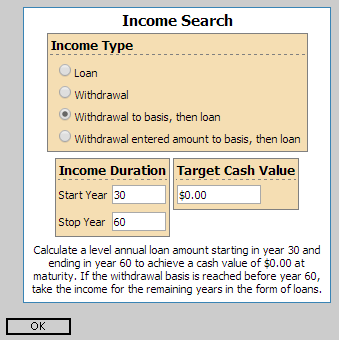
Today I wanted to take some time and walk through how to set up one of our more popular sales concepts, the Income Search.  The Income Search will solve for the max level income the client can take based on the inputs you select.

To begin, navigate to www.ikclife.com and login.  Don't forget you are now able to sign into the illustration system using your kclic.net credentials!

Once you have logged in, click on 'Illustration System' on the New Business Illustrations tab.  Choose the product you would like to quote and enter in the client's information.  The Income Search is available on the following products:
FlexWealth Advantage, Life Protector, SuperNOVA, EquiFlex - IUL and the Accumulator VUL.

Next choose the insured's gender, enter in the date of birth, and select the risk class you would like to quote.  Adjust the billing mode and type if needed and enter the specified amount of your choice.  Now you can either calculate the premium or set up your own premium schedule.

You are now ready to add the Income Search.  To do so, click on the clipboard to get to the available sales concepts and click on the green plus sign to add the Income Search.   


Here you can choose what type of income you would like to take and for how long.  Please note the income duration boxes use policy years and not age.


After clicking on the magnifying glass to run the illustration you will see the pages for the sales concept titled 'Loans and Withdrawals Supplemental Illustration' after the initial illustration.  One of the pages will have the cash flow summary like below.  There will also be a second illustration that takes the income into account.


If you have any questions or you would like to walk through setting up an income search on an illustration don't hesitate to contact us!

Illustration Development Team
1-800-572-2467 x8162
illustrationhelp@kclife.com

Monday, March 31, 2014

Online Sales Materials Catalog

Did you know you can download and order sales materials directly from iKCLife?  We have many different types of sales materials available to you including Consumer Brochures, Fact Sheets, Sales Guides and much more.

To find the sales materials go to www.ikclife.com and click on 'Sales Materials'.


You will then have the option to search by category, a keyword, product type, market segment or form number.  For example, if you type in Life Protector in the keyword box and hit search, all applicable sales materials for that product will be populated.


To download a sales material to your computer click on the green arrow.  From here you can view, save or print that sales material.  Being able to download sales materials from our website is a fast and easy way to get the most up to date forms and brochures. It also comes in handy if you have a client that wants information on a certain type of insurance or product emailed to them.

  
If you would like a hard copy of one of the sales materials click on the clipboard.  This will take you to a screen where you can enter where you want the sales materials mailed to and how many copies you would like.  Our supply department will then process the request, and you will receive the requested sales materials in the mail.


Please let us know if you have any questions.

Illustration Development Team
1-800-572-2467 x8162
illustrationhelp@kclife.com

Monday, February 3, 2014

Quick Quoter

You are now able to quote all of Kansas City Life's term, return of premium, and whole life products in our Quick Quoter!  The Quick Quoter allows you to quickly run quotes and only generate full illustrations when you need them.  The illustrations have also been condensed, so there are fewer pages compared to the full illustrations run on the new business illustration system.

To begin, navigate to www.ikclife.com and log in.  If you do not have a log in, you can create one by clicking on 'Create User'.


Next, click on 'Quick Quoter' on the New Business Illustrations tab.


This will take you to the Quick Quoter where you can choose which product you want to quote and also enter in all of the specifics for the client and case.


To see only the premium amounts for the case, click on 'Run Case,' which will produce output like below.


If you decide you want to see the full illustration, simply check mark the 'View Full Illustration (PDF)' box and click on 'Run Case' again.  This will create a PDF that you can then save or print.


If you have any questions on the Quick Quoter, or would like to walk through putting one together please give us a call.

Illustration Development Team
1-800-572-2467 x8162
illustrationhelp@kclife.com


Friday, January 3, 2014

Computer Based Illustration System Upgrade

In 2014 the Computer Based Illustration System is moving to the .NET 4.5 Framework in order to work effectively on Windows 7 and Windows 8 based computers.
  • Microsoft Windows XP will no longer be compatible with the Computer Based Illustration System.
    • Microsoft terminated mainstream support of Windows XP on April 14, 2009.
    • Microsoft will terminate their pay-per-incident support for Windows XP on April 8, 2014.
  • I have Windows XP, what can I do?
    • To continue running the desktop system you would need to upgrade your computer to run a Microsoft Windows Vista or newer operating system.
    • If upgrading isn't an option you can log-on to www.ikclife.com and run all of your illustrations on-line.
  • If you have a newer operating system than Windows XP, but don’t have Microsoft .NET 4.5 installed on your computer you will need to download and install it from this location:  http://www.microsoft.com/en-us/download/details.aspx?id=30653
Please feel free to contact us if you have any questions.

Illustration Development Team
illustrationhelp@kclife.com
1-800-572-2467 x8162