Followers

Tuesday, December 4, 2018

New Feature Introduced on Quick Quoter

Have you ever been in the middle of creating a quote for your client and realized you didn't have all the information you needed to finish it? Or been interrupted halfway through and had to re-enter the same information again later when you came back to it? What if the client wants to see several quotes for the same product with just one or two changes? The new button on the Quick Quoter creates a solution for all of these issues and more!


As shown in the image, the button in the top right corner of the Quick Quoter gives users the ability to load a new case, copy the inputs from the previous case, save their progress, and view previous quote cases. By clicking "New Case", all inputs are cleared and reset to default, thus allowing the user to begin a new quote without having to reload the entire page.


The "Copy Case" button loads a quote with the inputs from the most recently entered case. This is particularly useful when a client wants to see a particular product with various specified amounts or with different premiums. This saves valuable time as it eliminates the need for the user to re-enter all of the client information or other specifics related to their previous quote.


"Save Case" will save the current inputs, thus allowing the user to come back to that exact case at a later point in time. This is particularly useful if there is a base scenario to which the user would like to make minor adjustments to show a variety of options to their client. It is also helpful when setting up the case and realizing that a particular piece of information is missing to provide the most accurate quote as it eliminates the need to re-enter data. These saved cases can be viewed by clicking the "View Past Cases" button, where a list of previously run quotes can be found. From this page, users can view the specifics of the case by hovering the mouse over the "Info" icon. Clicking the icon in the "View Case" column will load the Quick Quoter with the case specifics already entered as inputs; no need to re-type all of that information again!


We hope this feature creates an even simpler user experience and would love to hear your feedback!

Monday, November 19, 2018

Application Packet for Gift of Life Now Available

It is now easier than ever to submit a Gift of Life application with the new application packet available on iKCLife! All required forms and instructions for filling them out can be found in one packet within the Forms and Apps section of the Wizards tab.


As always, please contact the Illustration Help Desk at illustrationhelp@kclife.com or 1-800-572-2467 x8162 with any questions.

Happy selling!

Thursday, September 27, 2018

Product Revisions

Kansas City Life Insurance Company introduces the revised Gift of Life, Value Assured and Cashback Life products.

The Value Assured and Gift of Life will have no premium changes and minor changes in cash values.

There are minor premium changes on Cashback Life 20 and premium increases on the B250 and B500 for Cashback Life 30. Also, the Cashback Life state exception version for Ohio, Pennsylvania, Utah and Washington will be discontinued as of Oct. 1, and these states will have the base Cashback Life 20 and Cashback Life 30 available.

All applications received in the Home Office for Gift of Life and Value Assured starting Oct. 1 will be issued as the new version of the product.

Beginning Oct. 1, applications written for the Cashback Life product will be issued as the new version of the product. Applications written prior to Oct. 1 and received in the Home Office prior to Oct. 12 will be issued under the old product.    

All updated sales collateral can be found in the Product Portfolio or the Online Sales Material Catalog.

Illustration Development Team
illustrationhelp@kclife.com
1-800-572-2467 x8162

Tuesday, August 28, 2018

Premium Calculation for Universal Life Products

Our Quick Quoter calculators make it easy and fast to figure out how much premium should be paid for a given case setup on universal life products. Through the calculators, you can calculate the premium amount that needs to be paid for the policy to provide coverage or endow in a given year or at a given age. Keep reading to learn how to calculate a premium using our PT calculator (available on all universal life products except Life Protector).

Once you have navigated to the Quick Quoter, choose a universal life product and fill out relevant insured information.


Next update the values section with the desired specified amount, DEFRA option, and death benefit option.


Finally, add any riders you want to be included in the case setup.


Now you are ready to calculate the premium. Choose the appropriate billing mode and billing type, and then click the "PT" icon to the right of the premium field to open the premium to age or year calculator.


Now you should see the calculator inputs. 


You have the option to complete the calculation based on either amount of years in the future, or the future age of the insured. 

If you would like to complete the calculation based on future year, leave the By Year radio selected. If you would like to complete the calculation based on the age of the insured, select the By Age radio and skip down to the "Calculation Type - By Age" section below.

Calculation Type - By Year

Pay Through Year - determines how far into the future the insured will pay the premium. If the insured will pay for the entire life of the policy, this should match the "Achieved at End of Year field that we will discuss later. If the insured would like to pay up the policy in a shorter time frame, such as ten years, update this field to that amount.

Target Cash Value - determines how much cash value will remain in the policy in the year set in the "Achieved at End of Year" field. We suggest leaving the $1,000 amount if you want the policy to provide coverage through your entered year and no longer. If you would like to see the policy endow in this year, update this field to be the same as the entered specified amount.

Achieved at End of Year - this is the year in which the policy will have the amount of cash value entered in the "Target Cash Value" field.

Mortality/Expenses and Interest Rate - this field determines if the calculation will be completed under current or guaranteed assumptions.

Once you have updated these fields, click Calculate. The calculator box will close and the resulting premium will be entered into the Premium field.

Calculation Type - By Age


Pay Through Age - determines until which age the insured will pay the premium and the age in which the policy will have the cash value in the "Target Cash Value" field.

Target Cash Value - determines how much cash value will remain in the policy in the year set in the "Pay Through Age" field. We suggest leaving the $1,000 amount if you want the policy to provide coverage through your entered year and no longer. If you would like to see the policy endow in this year, update this field to be the same as the entered specified amount.

Mortality/Expenses and Interest Rate - this field determines if the calculation will be completed under current or guaranteed assumptions.

Once you have updated these fields, click Calculate. The calculator box will close and the resulting premium will be entered into the Premium field.

Please let us know if you have any questions!

Illustration Development Team
illustrationhelp@kclife.com
1-800-572-2467 x8162


Tuesday, August 14, 2018

Supplemental Income for Retirement Plan using Indexed Universal Life

A new sales material, Supplemental Income for Retirement Plan Using Indexed Universal Life, can be accessed through iKCLife!

To find this brochure navigate to the Product Portfolio.  Once here select Universal Life and then Indexed.  The brochure is available in each section of our currently offered Indexed Universal Life plans.


After selecting one of the Indexed Universal Life products you'll see a Product Documentation section that houses all of the sales materials for that particular product.  Simply click on the Supplemental Income for Retirement Plan Using Indexed Universal life image to view this brochure.


If you are wanting to order this form from our supply department navigate to the Online Sales Material Catalog.  There are multiple ways to search for a form including category, keyword, product type, market segment, and form.  In the below image the form number for the Supplemental income for retirement plan using Indexed Universal Life, 12326, was entered in the form number box.  After clicking the 'Search' button the form was returned.  From here click on the clipboard icon which will open a page where you can enter how many copies of the form you need and where they should be mailed.


Illustration Development Team
illustrationhelp@kclife.com
1-800-572-2467 x8162

Wednesday, August 1, 2018

State Approvals Map Update

iKCLife gives you the ability to see which products and riders are approved in all of the states. We have recently made this even easier by updating the look and clarity of the State Approvals map. To take a look, complete the following steps:

Log in to www.ikclife.com.

Note: if you haven't created a username and password, you can login using your KCLIC credentials or navigate to www.ikclife.com and click on the icon highlighted below to create a login:


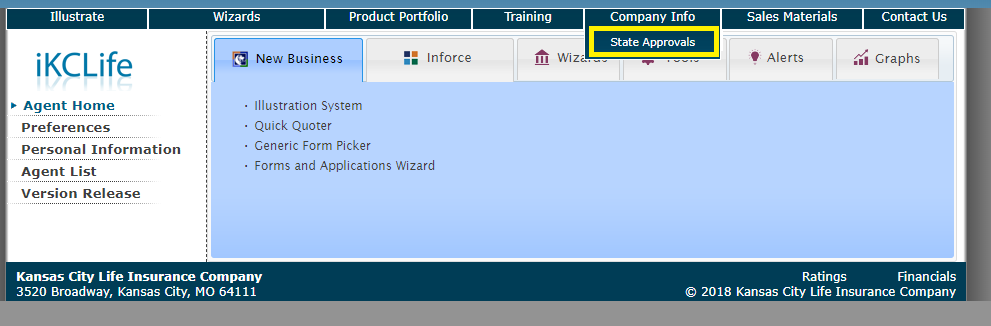
Once you have logged in, click on "Company Information" and then "State Approvals".


All you have to do now is select the state that you want to see.


For example, if you select Missouri the following would show:


This includes all products approved in Missouri and also which riders are approved for each product.

Illustration Development Team

Monday, July 9, 2018

Application Packets

Did you know application packets are now available through the Forms and Applications wizard on iKCLife?!

To obtain the application packets navigate to the Forms and Applications wizard on iKCLife.  Don't forget you can sign into iKCLife using your kclic credentials!


Once here select the Issue State and the App Packets radio button.  The available packets will be listed below and can be opened by clicking on the link.  Once opened the packet can be printed or saved.


Please let us know if you have any questions!

Illustration Development Team
illustrationhelp@kclife.com
1-800-572-2467 x8162